Help: How to Use the Common Search System.
Attention
Coverage
This search system may not cover all the pages of "Cabinet Office Web Site". Use other search system to find the information of the following sites.
- Food Safety Commission of Japan
- NPO Home Page

- Public Relations Office - Government of Japan
- Public Interest Commission
- State Guest Houses
About Date Range
"Date Range" will help you filter the search result by the last updated month.
However, it is impossible to search pages which updated before November 2022 by month.
To search pages which updated in and before November 2022, please set "Date Range" from November 2022 to November 2022.
* More detailed search is as follows : Advanced Search
Common Search System
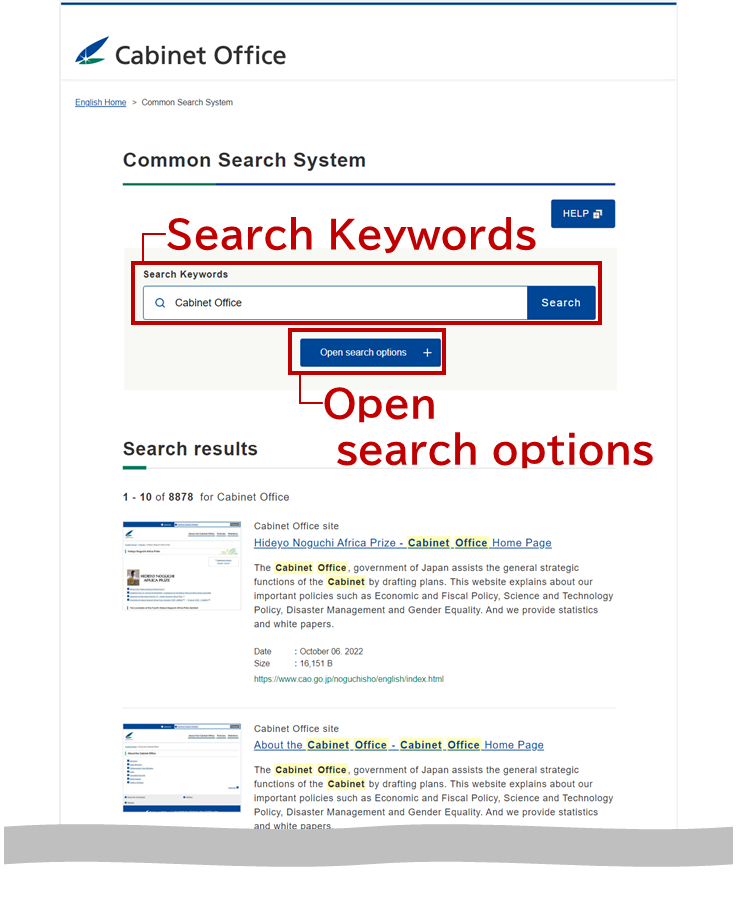
Search Keywords
Input the keywords you want to search, and click the "Search" button.
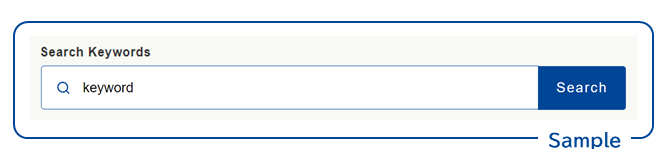
* The keyword is recommended over 2 characters to get correct results.
Advanced Search
You can search in advance with multiple keywords and the terms like AND / OR / ANDNOT.
| Condition | Format | Description |
|---|---|---|
| AND | Keyword#1 Keyword#2 | If you search for documents including "keyword#1" and "keyword#2", input as left. |
| OR | keyword#1 |keyword#2 | If you search for documents including "keyword#1" or "keyword#2", input as left. Please be sure to insert a space before the pipe symbol. |
| ANDNOT | keyword#1 !keyword#2 | If you search for documents including "keyword#1" but "keyword#2", input as left. Please be sure to include a space before the exclamation mark. |
| Phrase Search | "keyword#1 keyword#2" | If you search for documents including phrase like "keyword#1 keyword#2" Use (") and input as left. |
* Use " "(space),"|","!",""" with half-width characters. (accept single-byte characters only.)
Applied Case
You can search in advance with the combination of AND / OR / ANDNOT .
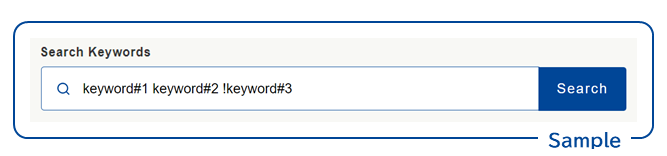
You can search documents includes both "keyword#1" and "keyword#2", excluding "keyword#3".
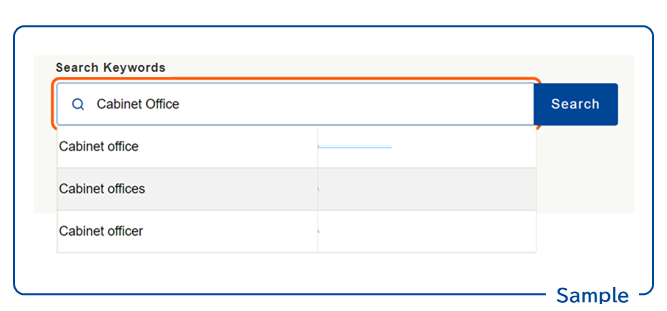
Suggest Search
While inputting search keywords, they are analyzed in real-time and calculated suggest keywords are displayed.
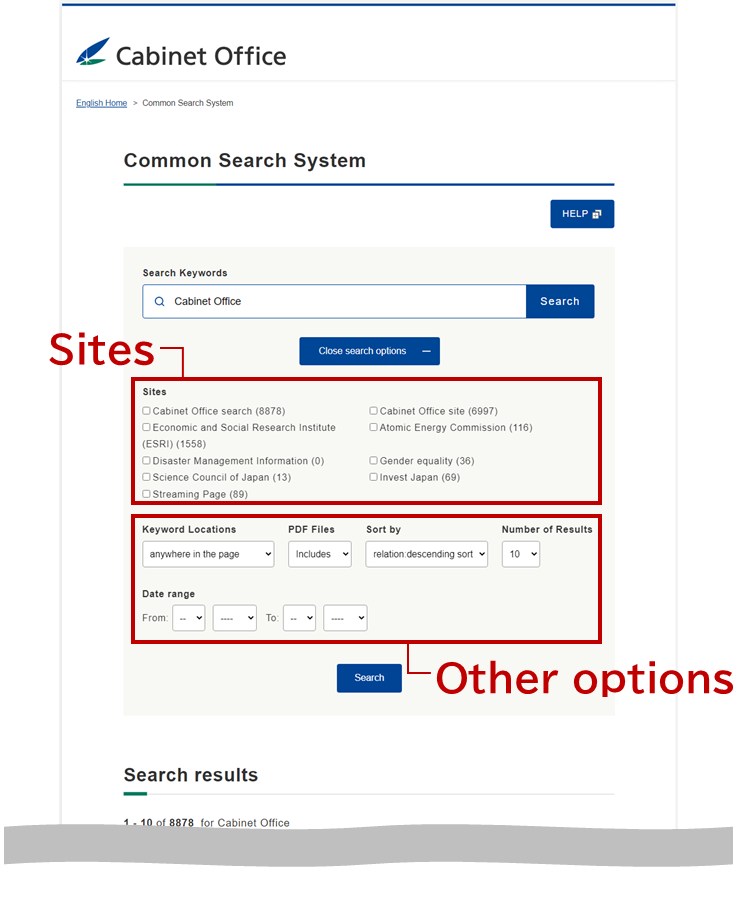
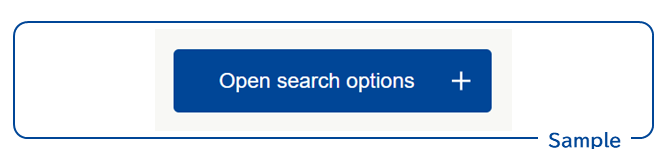
Open Search Options
If you click the "Open Search Options" button, you can search for more details.
Narrow the Search
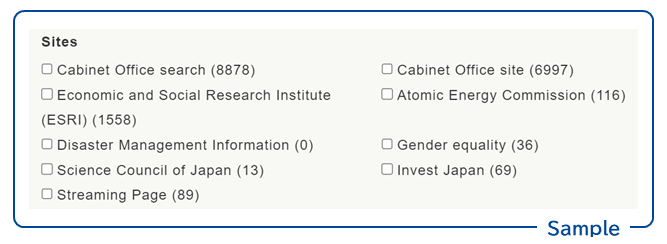
By selecting websites, you can narrow down the search result. It is possible to select multiple websites. You can search on all the websites by unchecking all the choices. The number at the end of each website's name shows the total number of results at each website.
Other Options
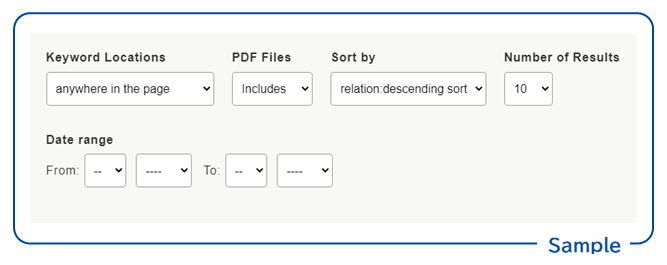
By selecting following options, you can narrow down the search results and set the output format.
- Keyword Locations
- Anywhere in the page (default)
- Only in the title of the page
- PDF Files
- includes (default)
- excludes
- PDF only
- Sort by
- relation: descending sort (default)
- date: descending order
- date: ascending order
- Number of Results
- 10 (default)
- 20
- 30
- 50
- 100
- Date Range
- Initially "Date Range" is not set. You can narrow down the search result by selecting the start and end months. * Please click here to read about restricted rules.
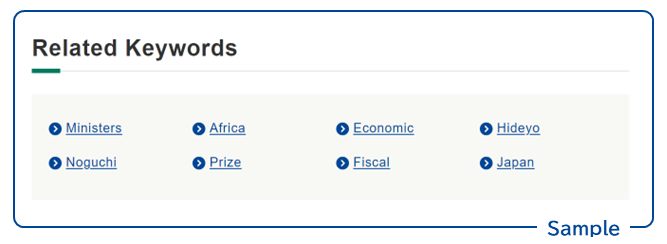
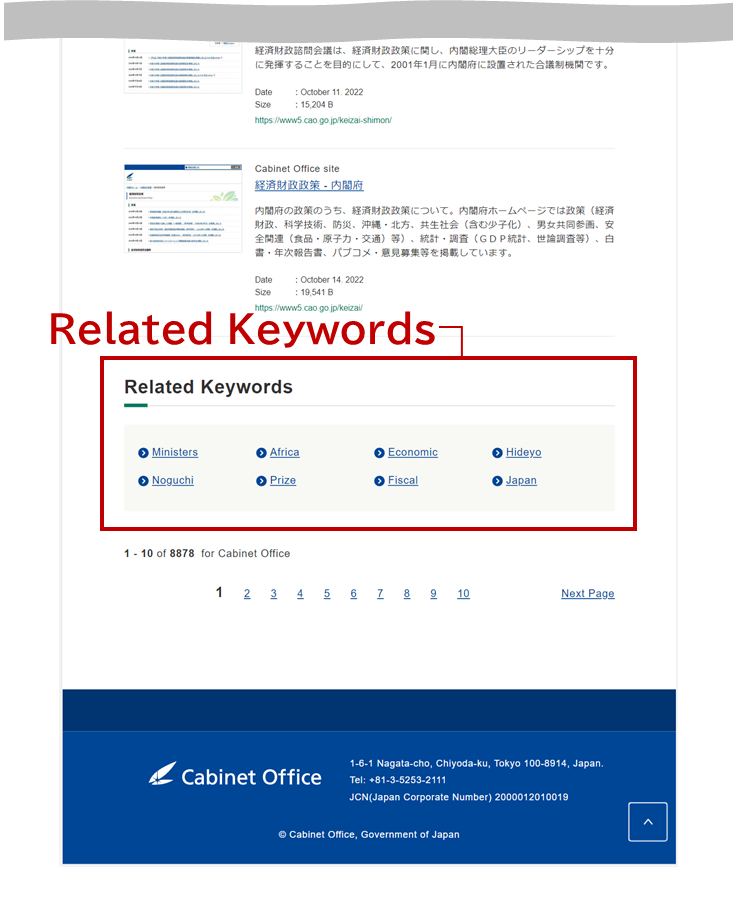
Related Keywords
Present keyword ideas related to search keywords.